A menu or service guide is often the single most-viewed piece of content a local business has, yet it’s frequently the least designed — a plain list of items and prices with no visual personality at all. That’s a missed chance, since a well-designed menu can influence what people order and how premium a business feels before a single item is tasted or tried.
An AI image generator by Dreamina makes it possible to build a genuinely appealing visual menu or service guide without hiring a graphic designer for what might otherwise feel like a low-priority project. Dreamina’s advanced image generation capabilities mean the backgrounds, icons, and supporting visuals for a full menu can come together in a single sitting.
Why visual polish on a menu actually matters
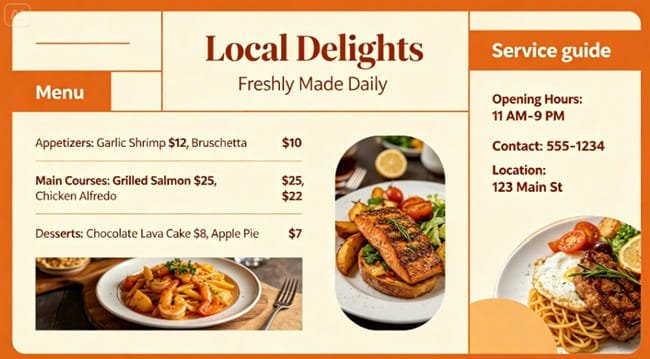
People decide what to order partly with their eyes before they’ve read a single description. A menu that feels considered — clean layout, a bit of visual warmth — signals quality and care, the same way a tidy dining room does. A cluttered or purely text-based menu can undersell food or services that are actually excellent.
The difference between a menu and a service guide
A food menu and a service guide (think salon services, repair pricing, or class offerings) share the same underlying need — clear, scannable information — but they lean on different visual tools:
- Menus benefit from appetite-appealing color and texture
- Service guides benefit from clear iconography representing each offering
- Both need generous white space so pricing doesn’t feel crammed
Designing a background that supports, not competes with, text
The visual elements of a menu should frame the content, not fight with it. Botanical accents, subtle textures, or soft color blocking along the edges work well, while anything placed directly behind dense text tends to hurt readability. Keep the busiest visual details along borders and corners.
Dreamina’s image generation models, explained
Menu and service guide backgrounds call for precision and a light touch with texture, and Dreamina’s range of models covers both needs well. Seedream 5.0 Pro, the platform’s most advanced and recently released model, is especially good at rendering the kind of subtle textures and clean linework a menu background needs, which makes it the strongest starting point for this kind of layout-focused visual.
Nano Banana brings a softer, more hand-illustrated quality that can suit a menu wanting a warmer, more artisanal feel. GPT Image 2 offers a further option for comparing a different stylistic take on the same layout before finalizing the design. Trying a prompt across a couple of these models is a quick way to find the texture and mood that best fits the business.
Building the menu visuals with Dreamina
Step 1: Write a text prompt
Open Dreamina and describe the background style you want, including the color palette, any decorative elements, and the need for clean open space for text.
For this menu, a prompt like: a warm, minimalist healthy food menu featuring soft botanical illustrations along the edges, cream and sage color palette, plenty of clean open space for text columns, subtle paper-like texture
If there’s an existing menu layout you like the structure of, upload it as a reference image to guide the new design.
Step 2: Adjust parameters and generate
Set the model to Image 5.0 Pro by Seedream 5.0 Pro for clean detail and reliable texture rendering. Choose a portrait aspect ratio for a standard printed menu or landscape for a wider digital layout, and select 1K for a quick draft or 2K if the file will be printed. Tap Dreamina’s generate icon to produce the background.
Step 3: Customize and download
Use Dreamina’s editing tools to fine-tune the design — inpaint to adjust a botanical detail or icon, expand the canvas if more space is needed for additional menu sections, remove any unwanted elements, and retouch texture for a clean, print-ready finish. Once it looks right, click download and add your menu text in your layout tool of choice.
Adding simple icons for a service guide
Service-based businesses benefit from small, consistent icons next to each offering — a pair of scissors for a haircut service, a wrench for a repair option. Generating a matching icon set alongside the main background keeps the whole guide feeling like one cohesive document rather than a mix of styles.
Formats worth designing for beyond the printed page
A menu or service guide often needs to work in more than one place:
- A printed version for in-store use
- A digital version for the website or a QR code link
- A simplified version sized for social media posts
- A condensed version for third-party delivery or booking platforms
Keeping the menu easy to update later
Prices and offerings change more often than the overall design should. Keeping the background and text layers separate, rather than baking pricing directly into a single flattened image, makes future updates far less painful than regenerating the whole design from scratch.
Small mistakes that hurt an otherwise good menu design
- Overdecorating to the point that text becomes hard to scan
- Using low resolution for a file that ends up printed
- Ignoring how the menu looks on a small phone screen
- Mismatched icon styles across different service categories
Final thoughts
A menu or service guide might seem like a small design project compared to a full brand campaign, but it’s often the piece of content customers spend the most time actually reading.
With a clean, considered layout and Dreamina generating backgrounds and icons that support rather than clutter the content, a local business can turn a plain list of items into something people genuinely enjoy looking at.