Live events are great for generating high-impact moments, but can lose impact once the event is over. Recap videos capture the excitement when it’s still fresh in the minds of viewers. With traditional editing, users have to sort through footage manually, trim the scenes, add captions, and balance the audio. AI can help automate tasks and reduce production time without compromising creativity. Pippit integrates video generation, video editing, media management, and publishing in a single workflow.
Why Fast Event Recaps Matter in Today’s Content Landscape
Fast recaps catch the eye, and event conversations continue on social channels. People are looking for highlights just after conferences, launches, festivals and gatherings. A delayed recap may not capture trending conversations and attendee input and the audience’s interest at the time. You can edit a long recording to make it a short highlight that still captures the event without getting bogged down in details. Judgement still counts for speed, as each chosen scene should be in aid of the story. It is important to present professionally as people tend to equate quality with credibility. Related recaps can be linked together with consistent framing, typography, colors, and pacing. With AI-assisted editing, Pippit simplifies these tasks.
Building an Efficient Event Footage Organization Process
Footage that is organized provides a solid foundation for editing, and it minimizes needless searching. Record each session, speaker, activity, location, and camera source separately and edit them. Highlight significant responses, comments, energy in the crowd, demonstrations, entrances, and memorable interactions. Have logos, title cards, music, and graphics all in one place. Arrival to activity to peak moment to closing can be a logical sequence. This framework can facilitate a story studio process and help maintain a focused recap. Cut any redundant shots that convey the same thing and don’t provide any helpful information. Pippit will enable you to add images, videos, files, and links to your videos. Media is organized, and revisions are quicker.
Steps to Generate Live Event Recaps in Record Time with AI Movie Maker
Step 1: Upload event footage
1. Sign up for Pippit using your Google, TikTok, or Facebook account.
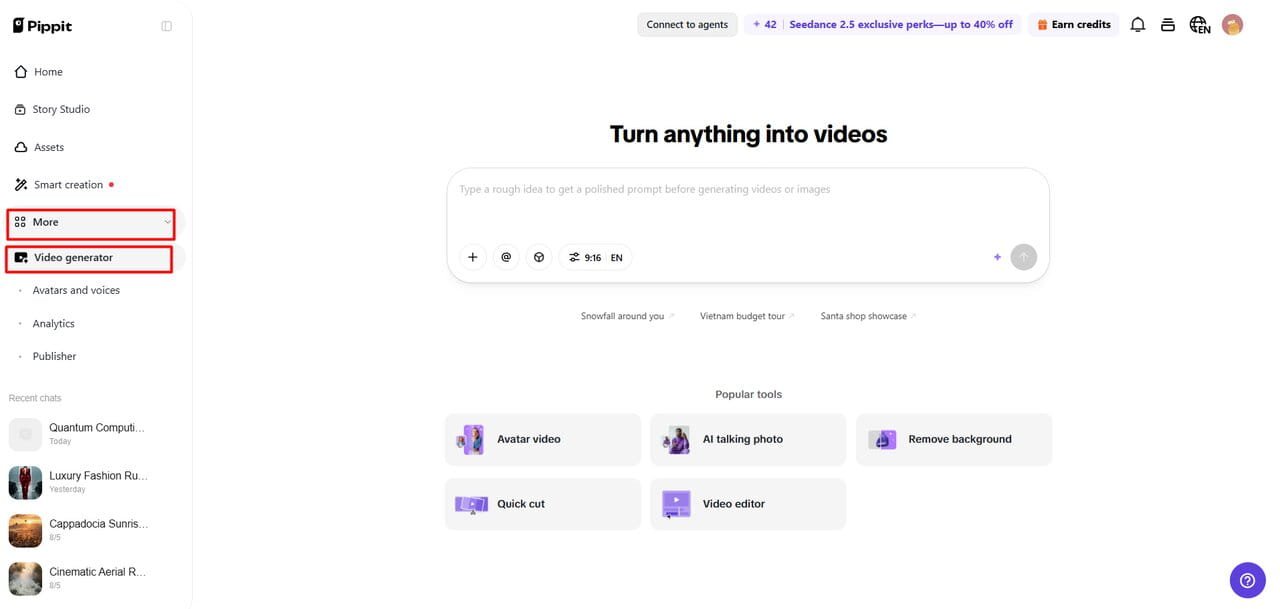
2. Open “More” from the left vertical menu bar and choose “Video generator”.
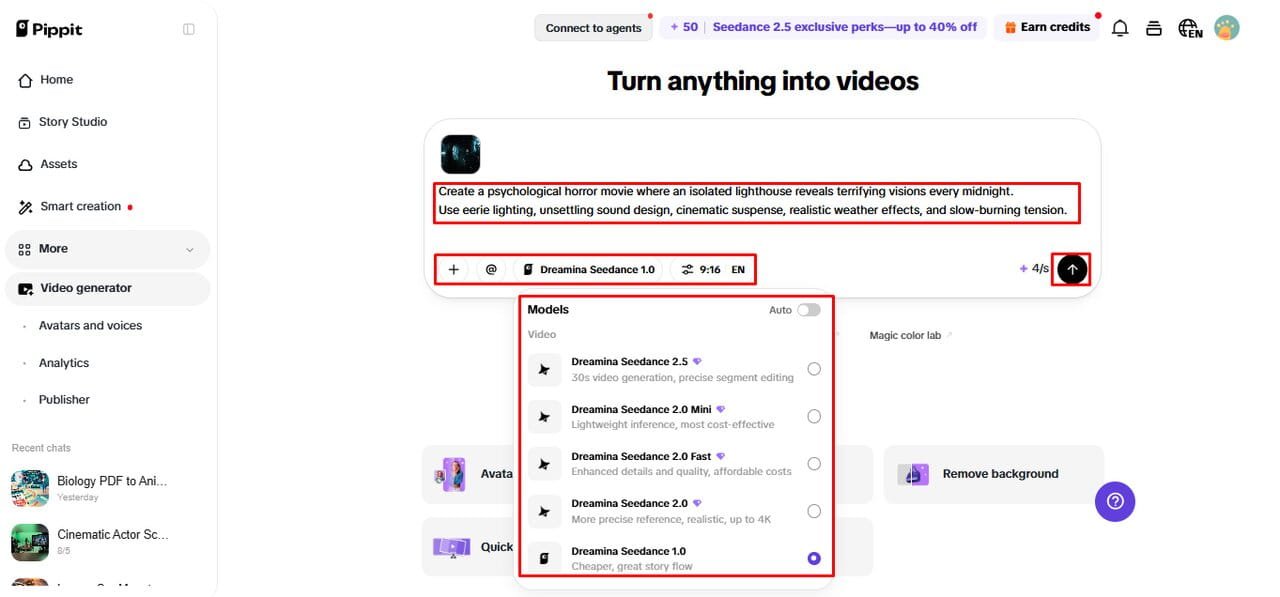
3. Select Dreamina Seedance 1.0, Dreamina Seedance 2.0, Dreamina Seedance 2.0 Fast, Dreamina Seedance 2.0 Mini, or Dreamina Seedance 2.5.
4. Enter a prompt describing your event highlights, scenes, effects, angles, and storytelling style.
5. Choose video length, language, subtitles, and aspect ratio.
6. Click “+” to upload event photos, videos, or references from your device, phone, Dropbox, or a link.
7. Click “Generate” to create your recap.
Step 2: Build event highlights automatically
- Pippit’s AI video generator creates a recap using your prompt and uploaded content.
- The AI handles transitions, pacing, captions, avatars, voice, lyrics, and visual enhancements.
- A movie draft is generated for review.
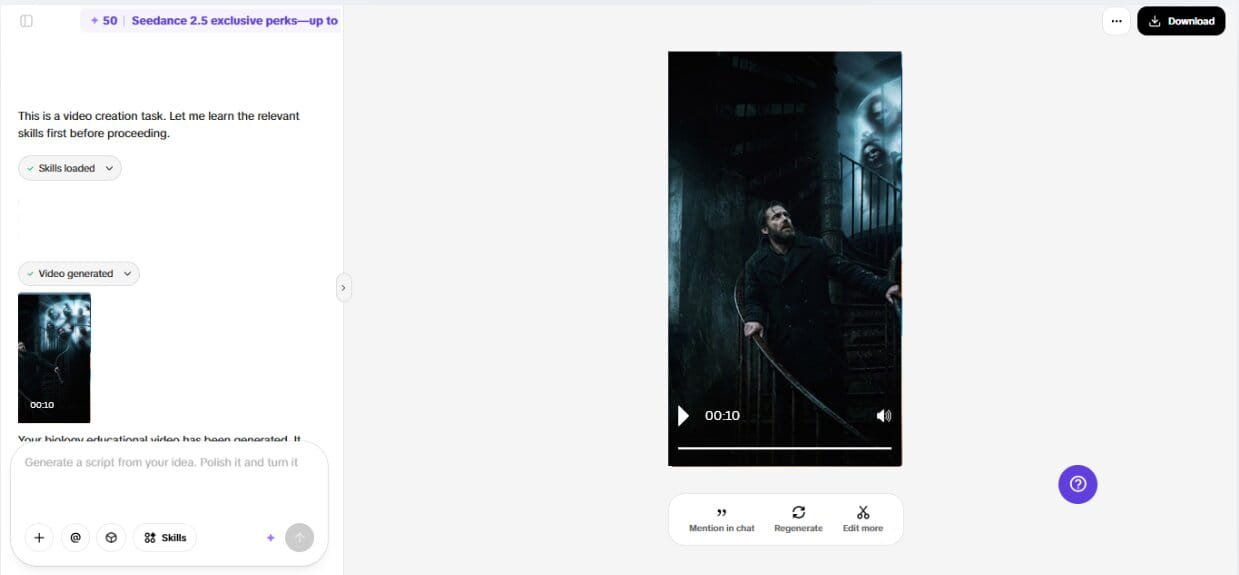
Step 3: Finalize and share
1. Click “Download” to save the recap, use “Regenerate” for changes, or select “Edit more” to customize.
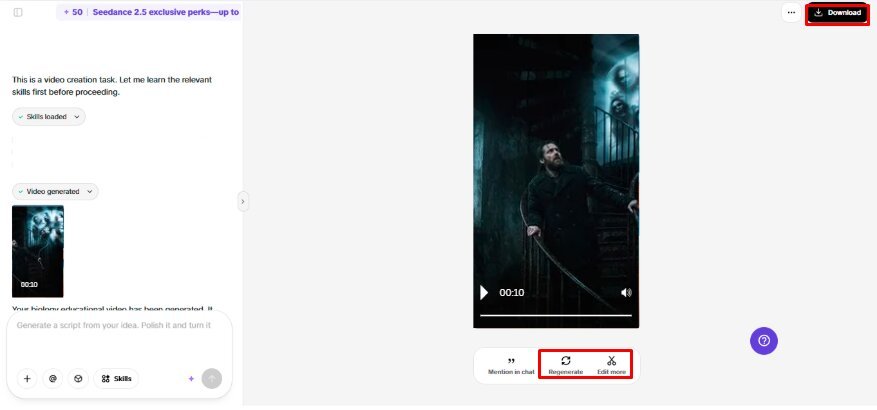
2. Edit captions, text, size, color, alignment, filters, and effects.
3. Add background music, remove backgrounds, and adjust visuals.
4. Click “Export” when complete.
5. Choose “Publish” for social platforms or “Download” with your preferred format, resolution, frame rate, and quality.
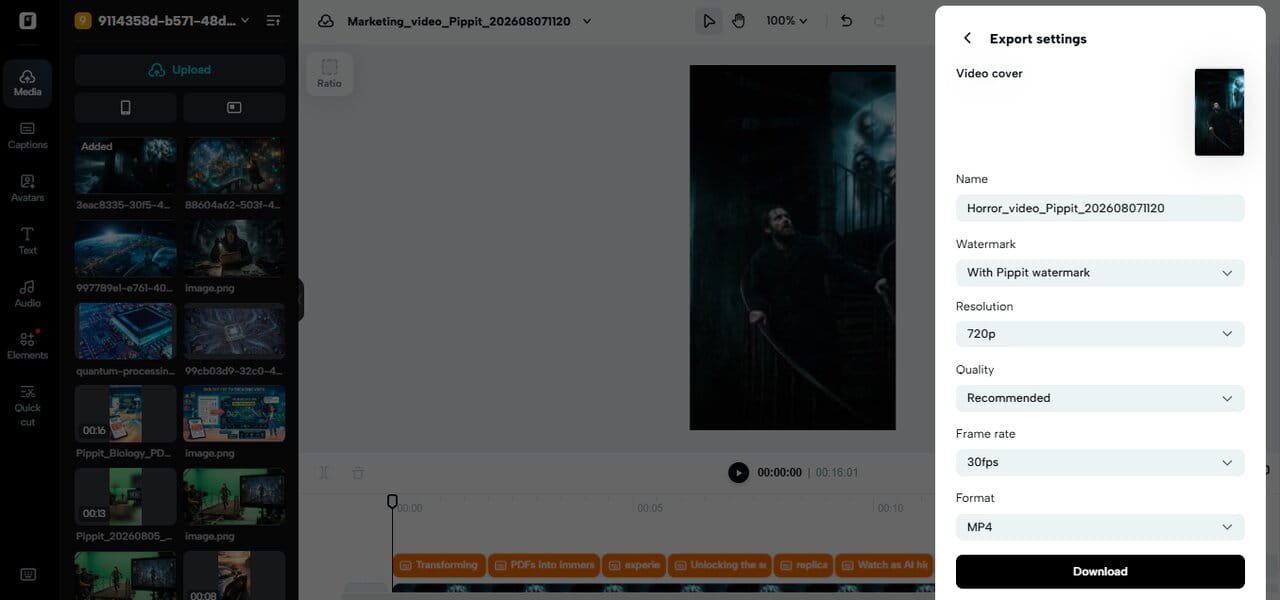
AI Features That Accelerate Event Highlight Production
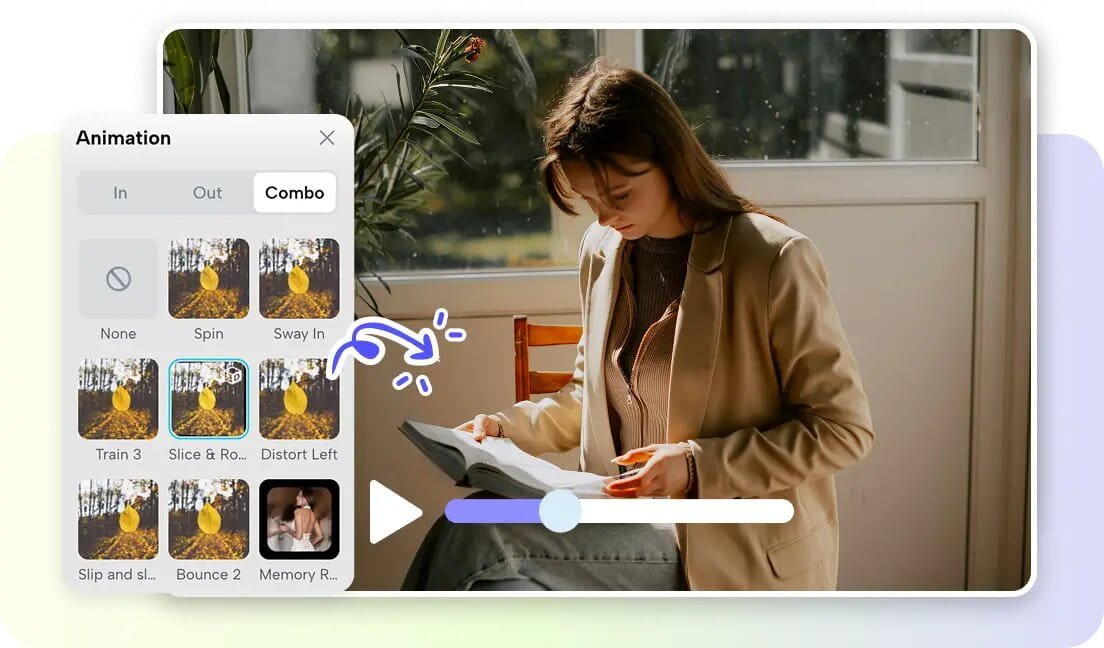
Automation can minimize repetitive editing and maintain creative control. Automated timelines can organize clips around a prompt, theme, or story. Intelligent transitions can join scenes without making all cuts seem abrupt. Captions generated can be used to reinforce oral content and for silent viewing. Visual enhancement can contribute to framing, colors, effects, backgrounds, and finishing. Pippit’s editor also comprises captions, effects, filters, text overlays, music, and background removal. These features can be useful for an ad maker workflow for promotional recaps. Content can be prepared for various aspect ratios and quality levels via export settings. Pippit also offers several video generation modes for various creative applications.
Essential Components of an Engaging Event Recap
An effective recap requires interesting shots, background, and development.
- Opening highlight: Begin with a “high-energy” moment that sets up the event.
- Smooth transitions: Link between major scenes for continuity of story.
- Caption integration: Provide reinforcement for names, quotes, locations, and important information.
- Background Music: Provide support sounds, but do not interfere with dialogue.
- Visual effects: Emphasize memorable moments without distracting viewers.
- Use a closing summary: Conclude with a scene to reiterate the importance of events.
Refining AI-Generated Recaps with Pippit’s Editing Tools
While AI generation offers a foundation, it is crucial to involve final review. Use correct names, titles, terminology, dates, and quotes in captions. Make adjustments for color and filters when there are significant differences between the footage from different cameras. Background removal can help to clean up compositions and isolate subjects. Test for continuity between shots from various cameras. Cut down on slow or repeated moments. Pippit’s editor offers text, caption, filter, effects, cropping, background and more. Check the sequence for timing, audio, spelling and framing before export.
Optimizing Event Recaps for Different Viewing Platforms
The way video is presented differs from platform to platform, so format your video before you export it. Vertical video is best suited for mobile-first platforms like TikTok and Instagram Reels. Landscape video is still good for YouTube, presentations, websites, and larger screens. Footage can be adapted to multiple publishing environments by using auto-crop and aspect-ratio controls. Reframe and check faces, text, logos and products. Do not have captions overlap any interface elements. Export quality to match source footage without oversized files. Pippit offers aspect ratio control and the ability to post directly to major social platforms. A master edit can minimize redundant work between platforms.
Best Practices for Faster and Better AI Event Productions
The efficient production process starts during the recording process, as flexible footage can facilitate the editing process. Shoot establishing shots, medium shots, close-ups, reactions, and clean audio. Don’t shoot actions in one continuous shot. Identify subjects, atmosphere, camera movement, pacing, transitions, and audience by writing prompts. Use automation, but don’t take all the choices that are generated. Review AI-generated scenes with the event to prevent misinterpretation of context. Use the same font and caption style, music volume, and branding throughout. Store reusable resources in folders for future events. Pippit’s AI movie maker media upload, generation, editing, and publishing workflow enables repeatable movie production.
Conclusion
AI video makers can reduce the time spent on making recaps by automating repetitive tasks. When the footage is well organized and the storytelling is intentional, speed works best. Pippit supports video generation and editing, uploads, video captions, video effects, cropping, and publishing. Its workflow can make it possible to turn event highlights into polished videos without long traditional video editing. Careful review is important because recaps need to reflect the information about an event accurately. Structured footage, descriptive prompts, editing, and appropriate exports support timely publishing.